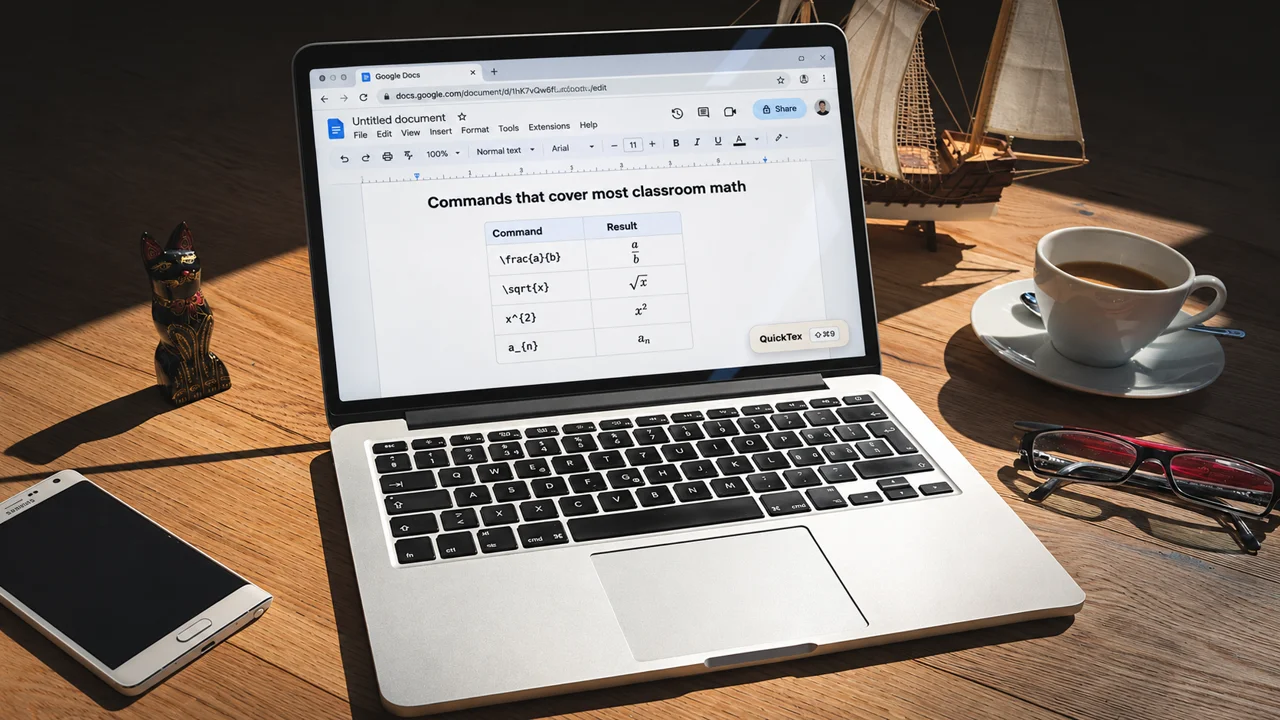
Creating Google Docs equations one menu click at a time works for a single fraction. It does not work well when you are building a full worksheet, a set of worked solutions, or an answer key for an entire unit. This guide shows math teachers a faster workflow with QuickTex, plus the 10 LaTeX commands that cover most classroom math.
Why formatting equations takes so long
With the built-in Google Docs editor (Insert > Symbols > Equation), you build most expressions step by step. You choose a structure, fill it in, move to the next part, and open another menu. The quadratic formula alone can take dozens of clicks.
That time adds up. A typical Algebra 1 or Algebra 2 worksheet can include 20 or more equations, and every revision means more clicking.
QuickTex changes the process. You type the whole equation once in LaTeX, check it in a preview, and insert it.
The 5-step QuickTex workflow
1. Open the composer with a shortcut
Place your cursor where the equation belongs. Open QuickTex from Extensions > QuickTex > Open Composer, or use the keyboard shortcut: Cmd + Shift + 9 on Mac or Alt + Shift + 9 on Windows.
2. Type the equation in LaTeX
For example, here is the quadratic formula:
x = \frac{-b \pm \sqrt{b^2 - 4ac}}{2a}
3. Check the preview
Look for missing braces, signs, exponents, and subscripts before you insert. Fixing a typo in the preview is faster than fixing it on the page.
4. Choose display or inline mode
Use display mode when an equation should stand on its own line, such as a key formula in a worked example. Use inline mode for short expressions inside a sentence.
5. Insert and keep writing
QuickTex places the equation in your document so you can continue writing the explanation around it.
10 LaTeX commands that cover most classroom math
To write | Type |
|---|---|
Fraction |
|
Square root |
|
Exponent |
|
Subscript |
|
Plus or minus |
|
Multiplication sign |
|
Less than or equal to |
|
Pi |
|
Summation |
|
Integral |
|
Once you know these commands, you can write most middle school, high school, and introductory college equations without opening a symbol menu.
Save the most time when you revise
Speed matters most when you need to change something. If a worksheet needs a different coefficient or a corrected sign, reopen the QuickTex equation, edit the LaTeX source, and update the result. You do not have to rebuild the equation from scratch.
This also makes it easier to create multiple versions of a quiz. Change the numbers in each equation, and the layout stays the same.
Tips for equation-heavy documents
- Write the text first. Draft the instructions and questions, leave a placeholder such as [EQ], and then add each equation with QuickTex.
- Keep a formula bank. Save the LaTeX for formulas you use every year in a separate document, and copy them into the composer when needed.
- Check at 100% zoom. Before sharing a document with students, view it at normal size to make sure no equation looks crowded.
Frequently asked questions
Do I need to know LaTeX to use QuickTex?
It helps, but you can easily get started with the 10 commands above, which cover a large share of classroom math. The preview shows the result before you insert it, so there’s no need to worry about entering something incorrectly. Plus, the sidebar menu has buttons to guide you should you forget a LaTex command.
Can I still use the built-in Google Docs equation editor?
Yes. QuickTex works alongside it. Many teachers use the built-in editor for a quick symbol and QuickTex for longer equations.
Does QuickTex work in Google Slides?
Yes. QuickTex supports Google Slides with Compose for typed equations and FreeDraw for sketching equations in real time.
For a full walkthrough, read Google Docs LaTeX with QuickTex: A Teacher’s Guide.
Write your next worksheet faster
Sign up for QuickTex at fullmarkseducation.com/quicktex and create Google Docs equations as fast as you can type.