Math belongs in the same place as the explanation around it. Teachers use equations in lesson notes, worked examples, quizzes, answer keys, and worksheets, but formatting can interrupt the work of planning a clear lesson.
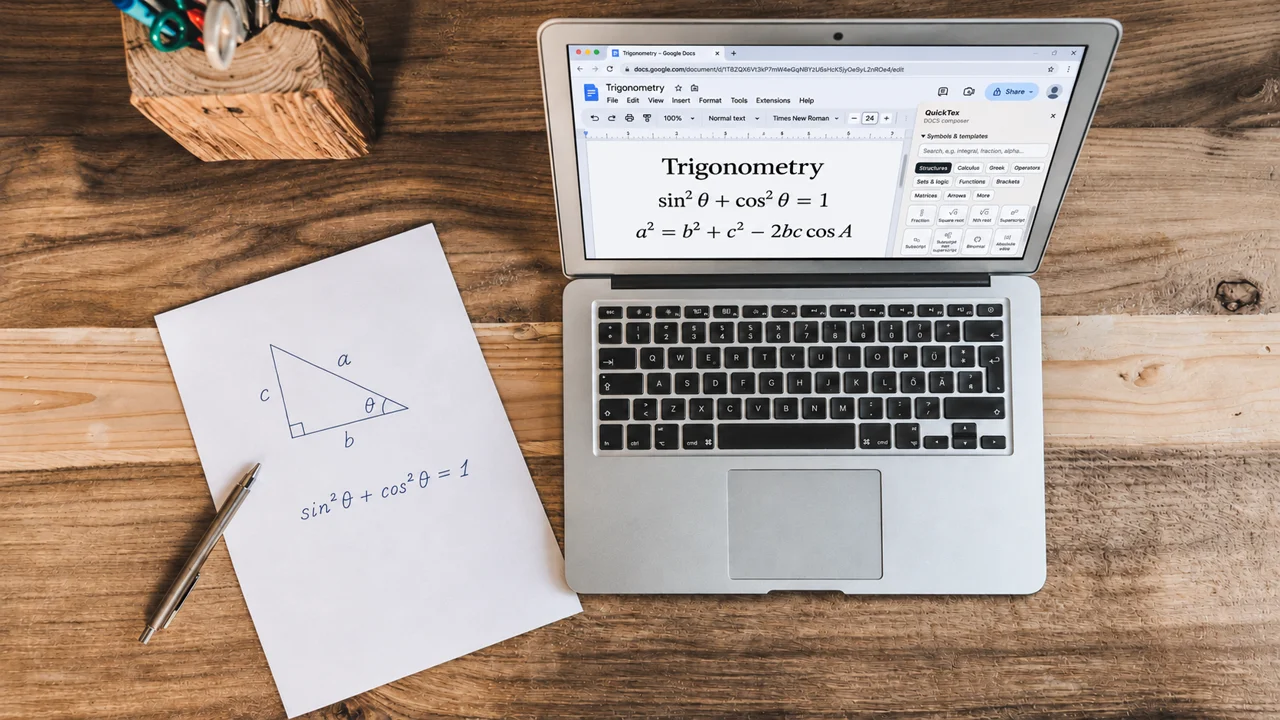
If you are looking for Google Docs LaTeX, you may want to type familiar LaTeX commands and place a polished equation directly in a document. Google Docs includes a built-in equation editor; QuickTex adds a composer for people who prefer a LaTeX-based workflow, with a preview before insertion and a way to revisit the equation source.
Use QuickTex to add equations in Google Docs fast
Google Docs has a native equation editor under Insert → Symbols → Equation. It provides equation controls and symbol menus, and it can be enough for many common expressions. Google also documents shortcuts for inserting certain symbols.
When you want to enter LaTeX-style equations directly, QuickTex provides a composer and a live preview. The built-in Google Docs editor is useful, but it is not a full LaTeX document compiler. QuickTex is an add-on for composing LaTeX equations in Docs and Slides, so you can work with familiar syntax and check a preview before inserting.

A simple QuickTex workflow for lesson materials
- Open the Google Doc where the equation belongs, such as a worksheet or lesson note.
- Open QuickTex from the Extensions menu and choose Open Composer. If you use the optional QuickTex Live Preview browser companion, install and authorize it first; it adds live-preview and shortcut features.
- Enter the equation in LaTeX. For example:
\frac{-b \pm \sqrt{b^2-4ac}}{2a}. - Check the preview for missing braces, signs, subscripts, and spacing. Choose display mode when you want the equation to stand apart from the sentence.
- Insert the equation, then add the explanation or student prompt around it. Reopen a QuickTex equation later to revise its source and update the result.

Use equations to support the lesson
For a worked example, place the original problem first, show one equation or transformation at a time, and write a brief note explaining why each step follows. In a practice worksheet, leave room for student work and keep notation consistent with the lesson. Before sharing, scan the page at normal reading size to make sure equations are not crowded or separated from their labels.
QuickTex can support a connected workflow when a lesson moves from a written handout to a presentation. Use Docs for detailed instructions and student practice; use Slides when you want to explain an equation visually to a class.
Frequently asked questions
Can I use LaTeX in Google Docs without an add-on?
Google Docs includes a built-in equation editor and symbol shortcuts. For a composer that accepts LaTeX input and previews the rendered equation, use a compatible add-on such as QuickTex.
Can I edit a QuickTex equation later?
Yes. Reopen a QuickTex equation to update its LaTeX source and rendered result. The composer shortcut is Command + Shift + 9 on Mac and Control + Shift + 9 on Windows/Linux. Check the edited equation in the document to confirm it still fits the surrounding layout.
Is QuickTex only for Google Docs?
No. QuickTex supports Google Docs and Google Slides. In Slides, Compose and FreeDraw offer ways to build or sketch equations for a presentation.
Sounds useful. Where do I sign up?
QuickTex is available at fullmarkseducation.com/quicktex.