A strong math lesson usually needs two kinds of materials: (1) a slide presentation to introduce the idea, and (2) a document for students to practice. When your Google Docs equations and Google Slides equations match, students can connect what they saw in class to what they see on the worksheet. This guide shows a simple QuickTex workflow for planning a full lesson.
Why consistent notation helps students
Research on worked examples, starting with John Sweller and Graham Cooper's 1985 study in algebra, found that students learn more efficiently when they study clear, step-by-step solutions before solving problems on their own. Worked examples work best when the notation stays consistent from one step, and one resource, to the next.
The same idea appears in the Common Core Standards for Mathematical Practice. MP6, "Attend to precision," asks students to communicate precisely. Teachers model that precision when every slide, worksheet, and answer key uses the same notation.
Step 1: Start with a formula list
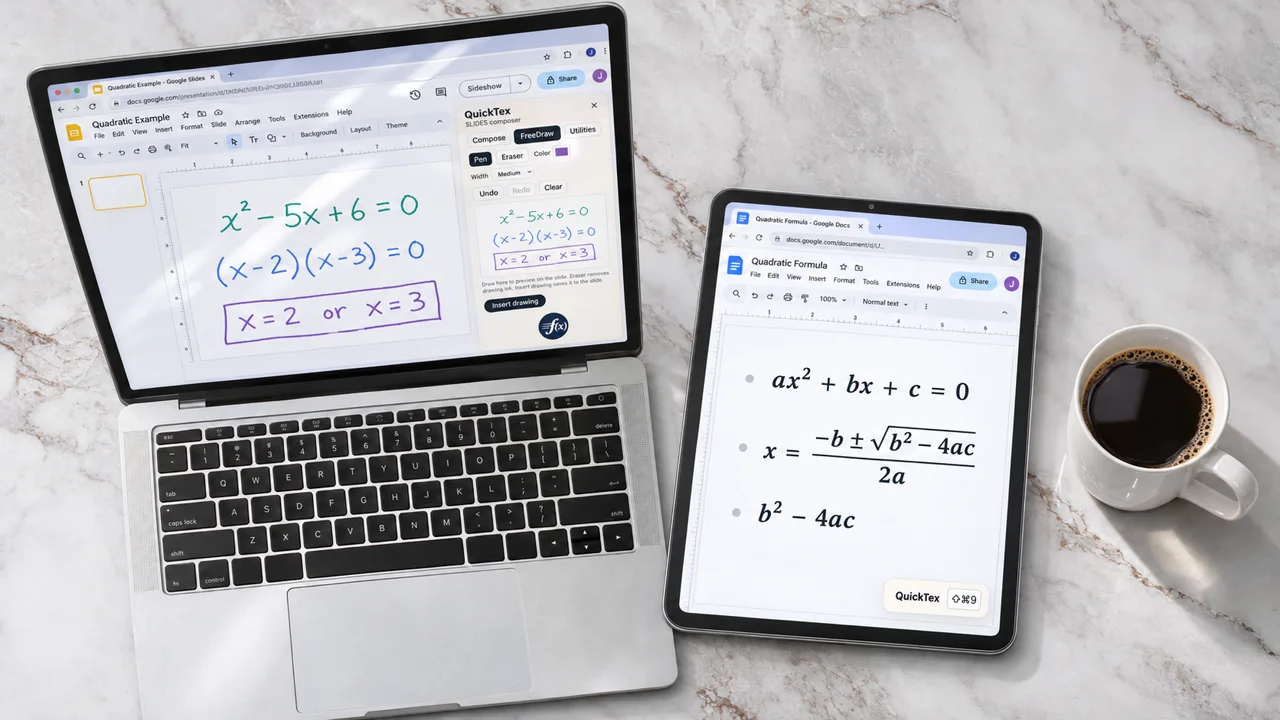
Before building any materials, write the key equations for the lesson in LaTeX. For a lesson on quadratic equations, your list might include:
- Standard form:
ax^{2} + bx + c = 0 - Quadratic formula:
x = \frac{-b \pm \sqrt{b^{2} - 4ac}}{2a} - Discriminant:
b^{2} - 4ac
This list becomes the single source of notation for the lesson. Every slide, worksheet, and answer key will use the same LaTeX.
Step 2: Build the slides in Google Slides
Open your presentation and use QuickTex to add equations.
- Compose: Paste or type the LaTeX from your list, preview it, and insert it. You can use Compose for clean, typed formulas.
- FreeDraw: Sketch an equation by hand in real time. FreeDraw works well for live worked examples, when you want students to follow your thinking one step at a time.
Keep each slide focused: one main equation per slide, large enough to read from the back of the classroom.
Step 3: Build the worksheet in Google Docs
Open a Google Doc for student practice. Launch QuickTex from Extensions > QuickTex > Open Composer, or press Cmd + Shift + 9 on Mac or Alt + Shift + 9 on Windows.
Use the LaTeX from your formula list for the key equations, and then add practice problems. Because the notation matches the slides, students recognize the formulas right away.
Step 4: Create the answer key
Make a copy of the worksheet and add worked solutions. If an answer needs to change, reopen the QuickTex equation, edit the LaTeX source, and update it. There is no need to rebuild the equation.
When to use Google Docs or Google Slides
| Lesson part | Best app | QuickTex feature |
|---|---|---|
| Introducing a concept | Google Slides | Compose |
| Live worked example | Google Slides | FreeDraw |
| Guided and independent practice | Google Docs | Composer |
| Answer key and written solutions | Google Docs | Composer |
| Review notes for students | Google Docs | Composer |
Reuse your lesson next year
A consistent formula list makes your materials easier to update and reuse. Next school year, open the same slides and worksheet, change the numbers or examples, and keep the notation exactly the same. Sharing materials with colleagues in your math department also becomes easier when everything follows one format.
Frequently asked questions
Can I use FreeDraw in Google Docs?
FreeDraw is currently a Google Slides feature. Use the QuickTex composer for equations in Google Docs. FreeDraw for Google Docs is coming soon.
Do I have to use the same equations in both apps?
No, but it helps. Reusing the same LaTeX keeps your notation consistent and saves planning time.
Does the built-in Google Docs equation editor work in Google Slides?
Google documents its built-in equation editor for Google Docs (Insert > Symbols > Equation). QuickTex gives you one equation workflow for both Google Docs and Google Slides.
For an app-by-app guide, read Google Docs LaTeX vs. Google Slides LaTeX: How to Use QuickTex in Each.
Plan your next math lesson with QuickTex
Sign up for QuickTex at fullmarkseducation.com/quicktex and keep every equation consistent, from the first slide to the final answer key.