The right place for an equation depends on what you are making. A worksheet needs room for explanations and student work; a presentation needs an equation that supports what the class is looking at. QuickTex brings a LaTeX-based equation workflow to both Google Docs and Google Slides, while each app serves a different job. The purpose of our extension is to help you write LaTex in all of the things you use to teach, present, or publish.
If you are deciding between Google Docs LaTeX with Google Slides LaTeX, start with your audience and the moment when they need to read the math.
Google Docs LaTeX: for written explanations and practice
We recommend using Google Docs when the equation belongs beside paragraphs, instructions, worked examples, or written feedback. A document can place an equation within a longer explanation, then continue into questions, answer space, and notes.
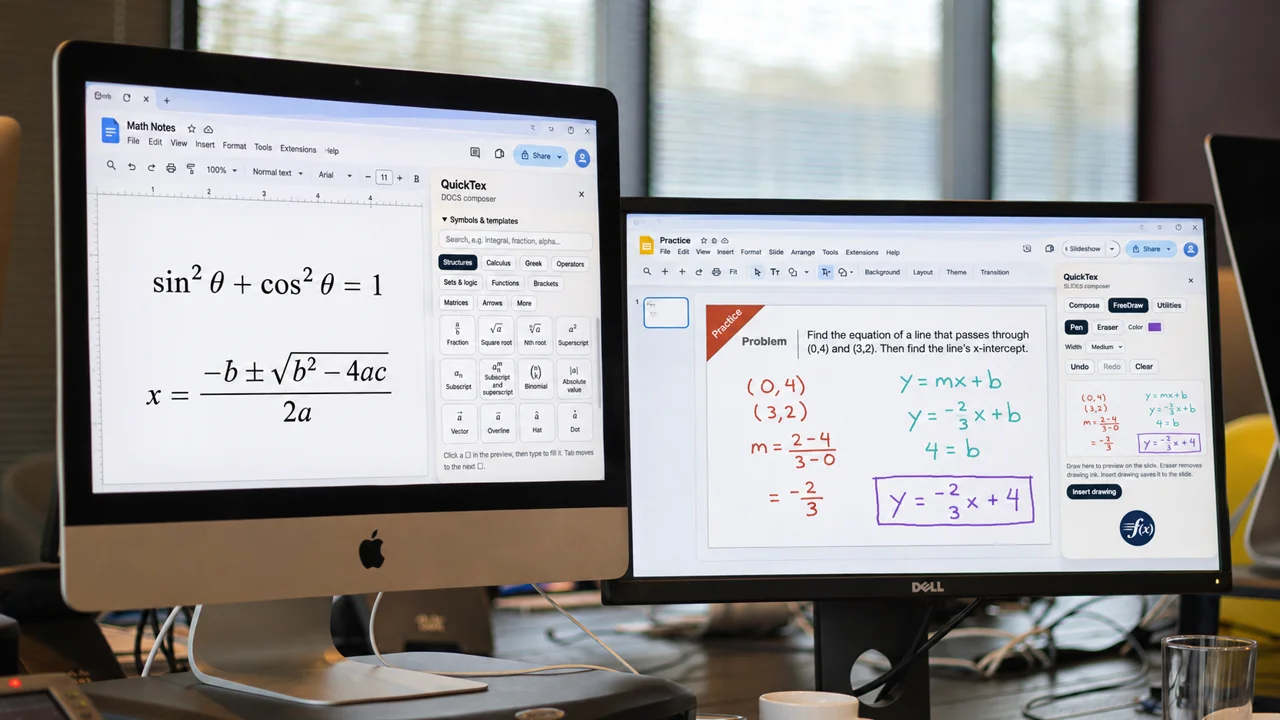
QuickTex lets you enter LaTeX in its composer, review a preview, and insert the result into the document. This can be useful when you want a repeatable way to create fractions, roots, powers, and other expressions while keeping the surrounding lesson in the same file.
A practical Docs workflow is to open the document, choose Extensions > QuickTex > Open Composer, enter the LaTeX source, check the preview, and insert the equation. Reopen a QuickTex equation when you need to revise its source and update the result.
Google Slides LaTeX: for visual teaching
On the other hand, you would want to use Google Slides when the equation is part of a visual explanation, lecture, or class presentation. Slides give you a canvas where a formula can sit beside a diagram, a graph, or a sequence of steps.
QuickTex for Slides includes Compose for building equations and FreeDraw for sketching them directly in real time. Your students can think with you as you construct something beautiful, either typed out or in your own handwriting.
Compose is a good fit when you want to enter structured LaTeX; FreeDraw is useful when you want to draw a mathematical expression by hand as you explain it.
Because a slide is viewed from a distance and often contains other visual elements, keep the equation large enough to read and avoid placing too much text around it. Present one main idea at a time, then reveal or discuss the next step.
Quick comparison
Tool | Best used for |
|---|---|
Google Docs | Lesson notes, worksheets, written solutions, and explanations that need paragraphs and space for student responses. |
Google Slides | Classroom presentations, visual worked examples, and explanations that combine equations with diagrams or other slide elements. |
QuickTex Compose | Enter an equation using LaTeX and review it before insertion in Docs or Slides. |
QuickTex FreeDraw | Sketch an equation in real time in the Slides workflow. |
Which one should I choose?
Choose Docs for a resource students will read, complete, or keep as notes. Choose Slides when you will guide the class through a visual explanation. Many lessons benefit from both: introduce a concept on a slide, then give students a document for guided practice.
Google Docs LaTeX and Google Slides LaTeX describe the same broad need—clear math inside a Google Workspace file—but the best workflow depends on whether students are reading a page or following a presentation.
Frequently asked questions
Does QuickTex work in both Google Docs and Google Slides?
Yes. QuickTex is designed for Docs and Slides. The available workflow depends on the app; Slides includes Compose and FreeDraw options.
Can I use FreeDraw in Google Docs?
FreeDraw is a Slides feature in the described QuickTex workflow. Use the LaTeX composer in Docs for document equations. FreeDraw in Google Docs is coming soon!