Google Docs equations are useful, but every math teacher who has built a full worksheet knows the frustrations: symbols that are hard to find, fractions that look cramped, and equations that are painful to edit. This guide covers six common formatting problems and practical ways to fix each one.
Why formatting problems affect learning
Messy math formatting is more than an inconvenience. Research on the split-attention effect, from Paul Chandler and John Sweller, found that students learn less when they must mentally combine information that is poorly laid out. A crowded equation or an unclear symbol forces students to decode the page before they can think about the math.
Clear formatting also supports the Common Core Standards for Mathematical Practice, especially MP6, "Attend to precision." Well-formatted materials show students what precise notation looks like.
Problem 1: You can't find the symbol you need
The built-in editor (Insert > Symbols > Equation) organizes symbols into menus, so finding a specific one can mean opening several of them.
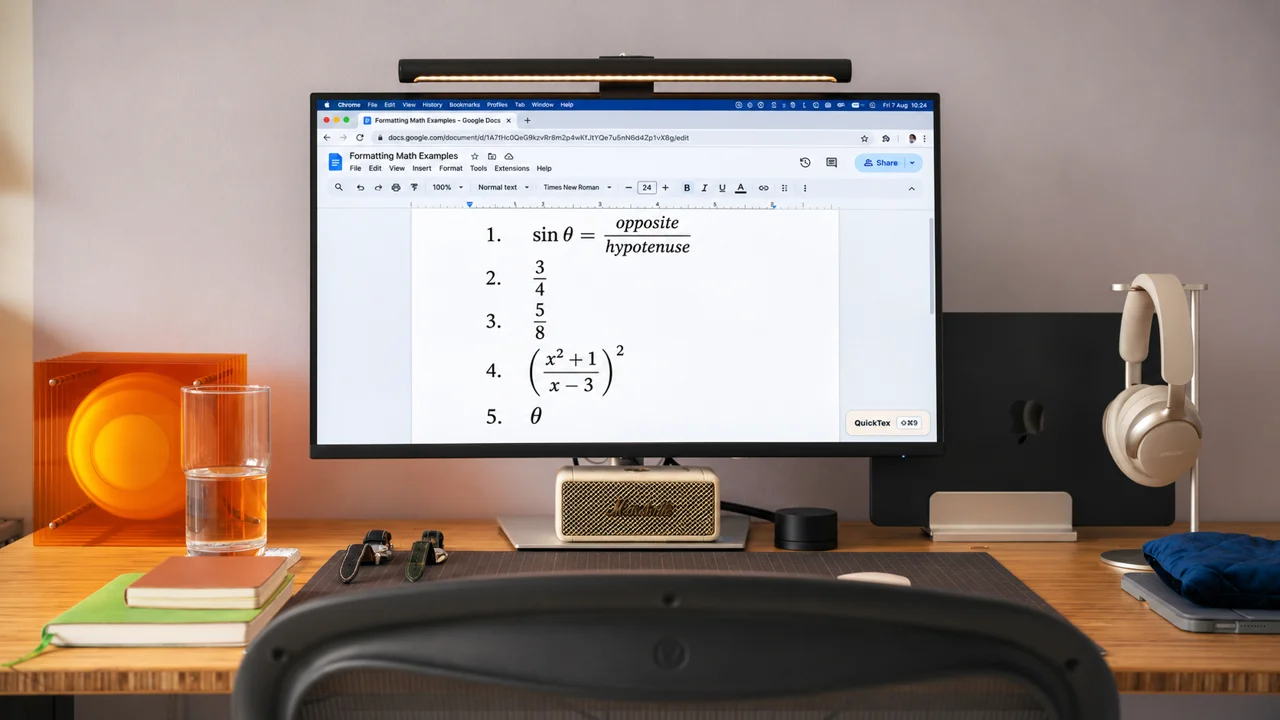
Built-in fix: Inside an equation, type a backslash, the symbol name, and a space, such as \theta, and Docs converts it to the symbol.
QuickTex fix: Type the full expression in LaTeX, such as \sin\theta = \frac{opp}{hyp}, and check the preview before inserting. Your hands never leave the keyboard.
Problem 2: Pasted LaTeX stays as plain text
If you copy LaTeX from another source and paste it into Google Docs, it stays as code instead of becoming a formatted equation.
QuickTex fix: Paste the LaTeX into the QuickTex composer instead of the page. The preview shows the formatted equation, and you can insert it in one step.
Problem 3: Editing an equation means rebuilding it
Changing one number in a long equation can be difficult, especially when it sits inside a fraction or a square root.
QuickTex fix: Reopen the equation, edit the LaTeX source, and update the result. Changing \frac{3}{4} to \frac{5}{8} takes a single edit. Open the composer quickly with Cmd + Shift + 9 on Mac or Alt + Shift + 9 on Windows.
Problem 4: Long expressions become messy
Expressions with nested fractions, exponents, and parentheses are hard to build one piece at a time.
QuickTex fix: Write the whole expression in one line of LaTeX. Use \left( and \right) so the parentheses grow to fit their contents:
\left( \frac{x^{2} + 1}{x - 3} \right)^{2}
Problem 5: Equations look crowded on the page
A key formula placed in the middle of a sentence can be hard for students to read.
Fix: Place important equations on their own line. In QuickTex, choose display mode for formulas that should stand apart, and use inline mode for short expressions within a sentence. Leave white space around worked steps so students can follow each one.
Problem 6: You need the same equation in Docs and Slides
Teachers often introduce a formula on a slide and then give students a worksheet with the same formula.
QuickTex fix: Use the same LaTeX source in both apps. In Google Slides, QuickTex offers Compose for typed equations and FreeDraw for sketching equations in real time. Matching notation helps students recognize that they are working with the same idea.
Checklist before you share a worksheet
- Check every equation at 100% zoom
- Confirm parentheses, signs, and exponents in the preview
- Use display mode for key formulas
- Keep notation consistent with your lesson and textbook
Frequently asked questions
Is the built-in Google Docs equation editor a bad choice?
Not at all. It works well for short or occasional equations. QuickTex is most helpful for long, frequent, or often-edited equations.
Can QuickTex edit equations made with the built-in editor?
QuickTex creates and edits its own equations. If you want to edit the LaTeX source of an existing equation later, recreate it in QuickTex.
For the step-by-step workflow, read How to Write Google Docs Equations Faster with QuickTex.
Make formatting the easy part of planning
Sign up for QuickTex at fullmarkseducation.com/quicktex and spend your time on the math, not the formatting.