If you teach math, you already know the problem with Google Docs equations: the lesson is ready, but formatting the math takes longer than writing it. A single unit can include dozens of fractions, exponents, and formulas across notes, worksheets, quizzes, and answer keys.
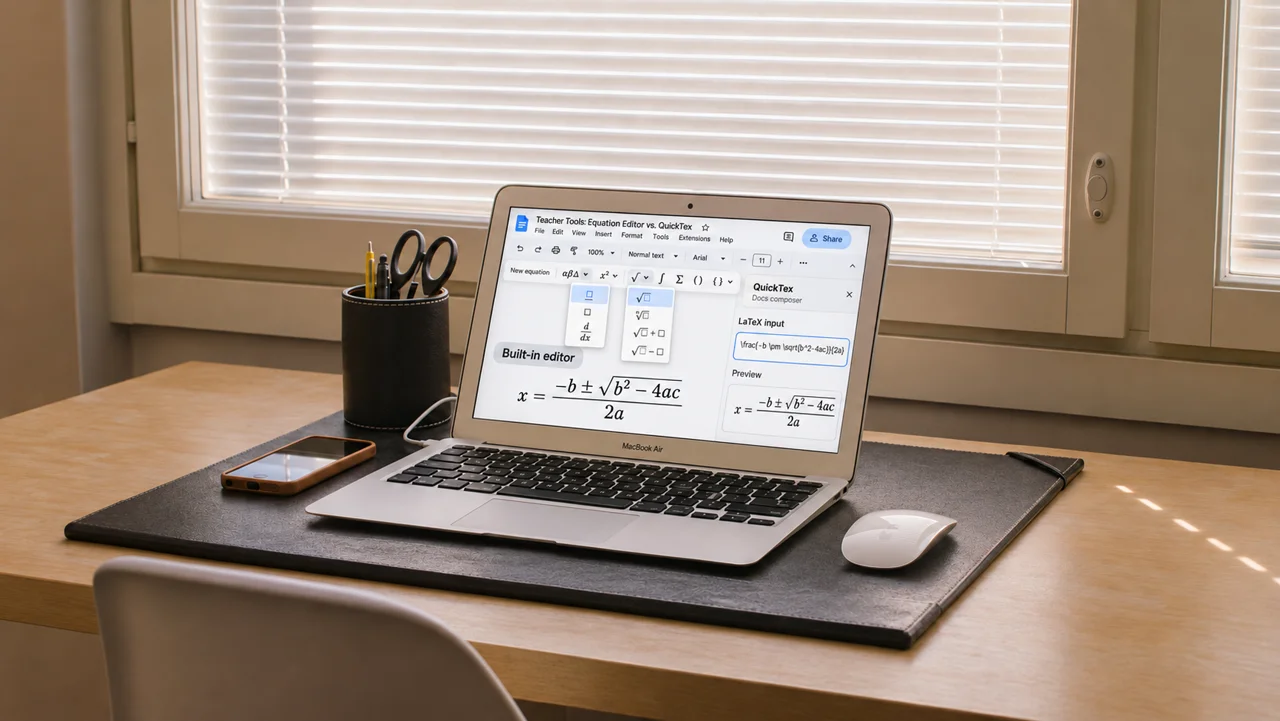
There are two main ways to create equations in Google Docs. You can use the equation editor that Google includes, or you can use an add-on such as QuickTex. This guide compares both so you can choose the right tool for each task.
Why clear equations matter for student learning
Equation formatting is not just about appearance. The Common Core State Standards for Mathematical Practice ask students to "attend to precision" (MP6), which includes using clear definitions and accurate notation. Students can only practice precision if the materials we give them model it.
Research on cognitive load theory also supports clean, consistent math formatting. John Sweller's work shows that working memory is limited, and that poorly designed materials add "extraneous" load that competes with learning. When a fraction is cramped or a symbol is unclear, students spend effort decoding the page instead of understanding the math.
The built-in Google Docs equation editor
Google Docs includes a native editor under Insert > Symbols > Equation. It opens a toolbar with menus for Greek letters, operators, relations, and math structures such as fractions, roots, and exponents.
The editor also supports a few keyboard shortcuts. Inside an equation, type a backslash, the symbol name, and a space, such as \alpha, and Docs converts it to the symbol.
Where the built-in editor works well
- Short expressions inside a sentence, such as 3x + 5 = 20
- Documents that need only a few equations
- Teachers who prefer clicking menus over typing commands
Where it slows teachers down
- Longer expressions require many clicks across several menus
- Pasting a full LaTeX expression does not convert it into a formatted equation
- Editing a complex equation can mean rebuilding part of it
QuickTex for Google Docs equations
QuickTex is an add-on for writing LaTeX equations in Google Docs and Google Slides. Instead of building an equation piece by piece, you type it once in LaTeX, check the preview, and insert it into your document.
Where QuickTex works well
- Worksheets, quizzes, and answer keys with many equations
- Teachers who know LaTeX, or who want to learn a few commands and reuse them
- Equations you expect to revise, since QuickTex lets you reopen an equation, edit its source, and update the result
- Lessons that move between Google Docs and Google Slides
Side-by-side comparison
Feature | Built-in Docs editor | QuickTex |
|---|---|---|
How you enter math | Menus and some backslash shortcuts | LaTeX in a composer |
Preview before inserting | No, you edit directly on the page | Yes |
Editing later | Edit in place | Reopen and update the LaTeX source |
Keyboard shortcut | Not available | Cmd + Shift + 9 (Mac), Alt + Shift + 9 (Windows) |
Google Slides support | No | Yes, with Compose and FreeDraw |
Best for | A few simple equations | Equation-heavy materials |
Which tool should you use?
Choose the built-in editor if you add only a few short equations and prefer working with menus.
Choose QuickTex if your documents are full of math, you want the speed of typing LaTeX, or you use the same formulas in both Google Docs and Google Slides. Many teachers use both tools: the built-in editor for a quick symbol and QuickTex for longer or frequently edited equations.
Frequently asked questions
Do I need an add-on to create Google Docs equations?
No. Google Docs includes an equation editor under Insert > Symbols > Equation. An add-on such as QuickTex is helpful when you want to type equations in LaTeX and preview them before inserting.
Can I use both tools in the same document?
Yes. The two tools work side by side. You can use the built-in editor for small expressions and QuickTex for longer equations.
Does QuickTex work in Google Slides?
Yes. In Google Slides, QuickTex offers Compose for building typed equations and FreeDraw for sketching equations by hand in real time.
For a step-by-step walkthrough, read Google Docs LaTeX with QuickTex: A Teacher’s Guide.
Start writing better Google Docs equations
If formatting math takes up too much of your planning time, sign up for QuickTex at fullmarkseducation.com/quicktex.
References
- Google Docs Help. "Use equations in a document." support.google.com/docs/answer/160749
- Common Core State Standards Initiative. "Standards for Mathematical Practice." corestandards.org/Math/Practice
- Sweller, J. (1988). Cognitive load during problem solving: Effects on learning. Cognitive Science, 12(2), 257-285.