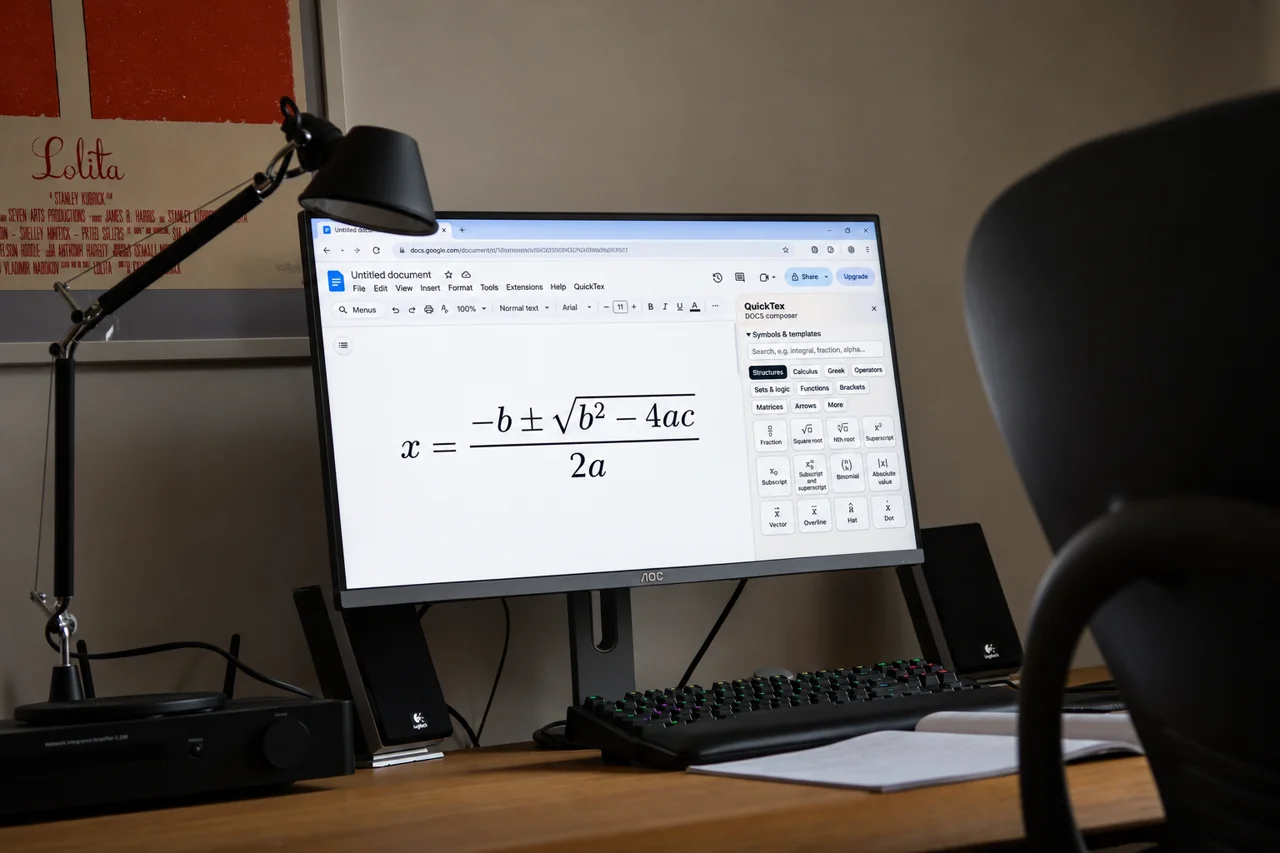
Need a fraction, aligned expression, or multi-part formula in a handout? This step-by-step guide shows how to add LaTeX equations to Google Docs with QuickTex. You can enter LaTeX in a composer, inspect a preview, and insert the finished equation into your document.
Google Docs also has a built-in equation editor. QuickTex is useful when you prefer a text-based LaTeX workflow and want a dedicated preview before placing an equation.
Before you start
Make sure you can edit the Google Doc and have installed and authorized the QuickTex add-on for Google Docs. QuickTex Live Preview is an optional browser companion; it requires the add-on and adds companion features such as live slide previews and keyboard shortcuts. The add-on itself is the starting point.
Add a LaTeX equation in Google Docs
1. Open the document and place your cursor
Open the worksheet, lesson notes, or assignment where the formula belongs. Click near the sentence or section that will introduce it. This makes it easier to decide whether the equation should sit within a line of text or have its own display space.
2. Open the QuickTex composer
In Google Docs, open Extensions > QuickTex > Open Composer. If QuickTex is not listed, confirm that the add-on has been installed for the account you are using and refresh the document.
3. Enter the LaTeX source
Type or paste the expression into the composer. For example, you can enter \frac{a+b}{c} for a fraction or \sqrt{x^2+1} for a square root. Keep braces paired and check that each command is spelled correctly.
4. Review the preview
Look at the rendered preview before inserting. Confirm that the numerator and denominator are complete, that exponents and subscripts are attached to the right symbols, and that parentheses or brackets are balanced. Use display mode for a standalone equation when the surrounding paragraph needs more breathing room.
5. Insert and check the page
Choose Insert, then read the equation in the context of the full page. Check its size, spacing, and relationship to the sentence or problem. If you are preparing a student worksheet, make sure the equation does not crowd the area where students need to write.
6. Reopen and revise when needed
If the formula changes, reopen the QuickTex equation, edit the LaTeX source, and update the rendered result. Review the document again after the edit so that the formula still matches the explanation and the page layout.
Common fixes
If the preview is blank or incomplete, check for a missing brace, an unclosed command, or a typo. If the equation appears too large within a sentence, try a different display setting or move it to its own line. If QuickTex does not appear in Extensions, verify the add-on installation and make sure you opened the document with the same Google account.
For a single common symbol, Google Docs’ native equation editor may be sufficient: choose Insert > Symbols > Equation and select from its equation toolbar. QuickTex is intended for a LaTeX-based composer and preview workflow.
Frequently asked questions
Does Google Docs turn any LaTeX code into an equation by itself?
Google Docs has its own equation editor and symbol shortcuts, but it is not a full LaTeX document compiler. A compatible add-on such as QuickTex provides a composer for LaTeX input.
Do I need the QuickTex browser extension?
The QuickTex add-on is required. The QuickTex Live Preview browser extension is an optional companion and does not work by itself.
Can the same workflow be used in Google Slides?
QuickTex also supports Slides. Use its Compose workflow to build equations for a presentation, or use FreeDraw to sketch them in real time.
With a preview-first workflow, Google Docs LaTeX can fit naturally into the document you are already preparing—whether that is a lesson, a homework assignment, or a math worksheet.