A strong math worksheet makes the thinking visible. Students need a clear prompt, readable notation, space to work, and a sequence that moves from an example to independent practice.
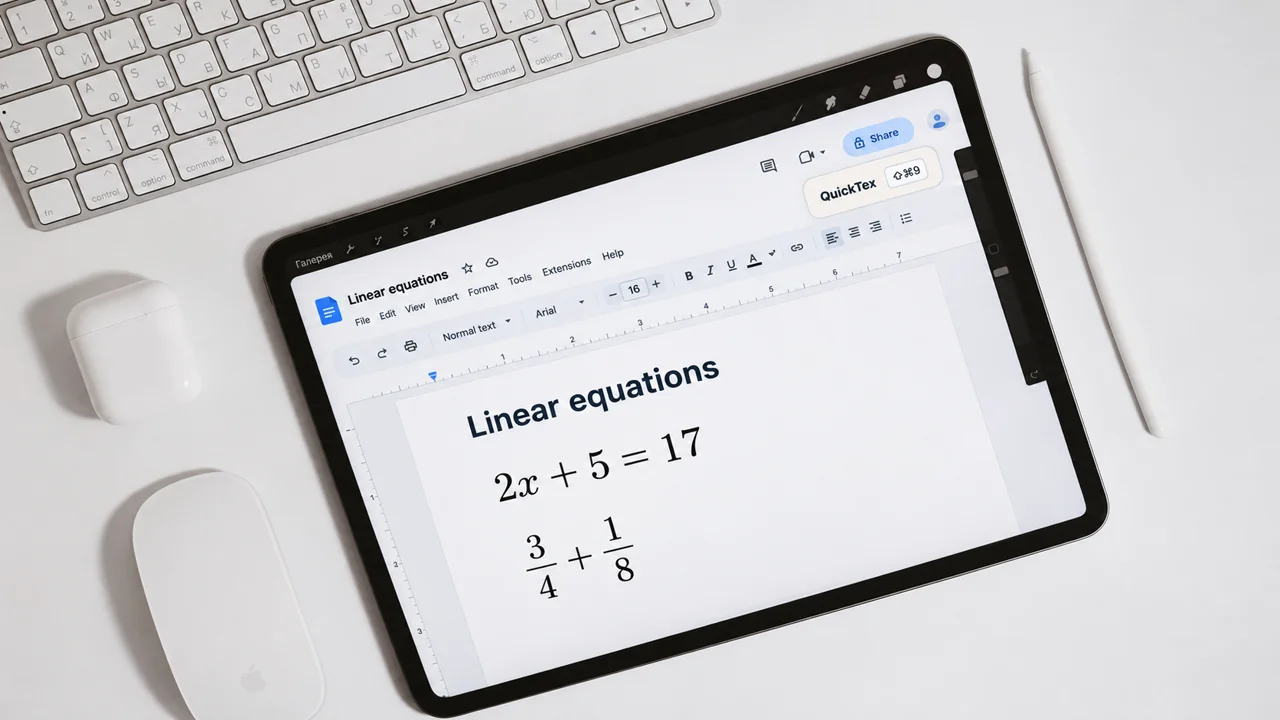
Making worksheets can be time-consuming. Google Docs has a native equation editor, while QuickTex offers a LaTeX-based composer and preview workflow. Fortunately, QuickTex can help teachers create and revise equations while Google Docs keeps the worksheet’s instructions and questions together.
For teachers searching for a Google Docs LaTeX editor, QuickTex offers a composer for LaTeX input, a preview before insertion, and a workflow for reopening and editing equation source.
That can make it easier to update a worksheet when a problem, number, or explanation changes. Furthermore, when you make a worksheet on Google Docs, you get all the benefits of the Google ecosystem: you can easily share an editable version in Google classroom, can make edits that all students will receive instantly, and so on.
Plan the worksheet before typing equations
Decide what students should learn and what evidence will show they have learned it. A worksheet might include a short objective, one worked example, guided questions, independent practice, and an answer key. Organize the sections before adding formulas so each equation has a clear purpose.
Keep each question focused. If a problem requires several steps, use enough space to show the reasoning rather than asking students to squeeze work into a narrow gap. Use labels and directions consistently so students know where to begin.
How to add equations with QuickTex
- Open the Google Doc. Place your cursor where the equation should appear, ideally beside the question or explanation it supports.
- Launch QuickTex. From the Extensions menu, open QuickTex and select Open Composer.
- Enter the equation in LaTeX. For a linear-equation worksheet, type
2x + 5 = 17. For a fraction exercise, type\frac{3}{4} + \frac{1}{8}. - Check the preview. Make sure the symbols, fractions, and spacing display as intended before inserting the equation.
- Insert the equation into your document. Add clear directions telling students what to do—for example, solve for x and explain each operation.
- Revise equations when needed. Reopen the QuickTex equation, edit its LaTeX source, and update the result.
- Review the full question. Confirm that the revised equation agrees with the instructions, worked solution, and answer key.
Frequently asked questions
Can I edit an equation after inserting it?
QuickTex provides a way to reopen its equations and update the LaTeX source and rendered result. After revising, check that the worksheet’s solution and answer key remain consistent.
Is QuickTex a replacement for the Google Docs equation editor?
Google Docs includes its own equation editor and symbol menus. QuickTex offers another workflow for teachers who prefer to compose equations from LaTeX and preview them before insertion.
Can students use the worksheet in Google Docs?
The document can be shared with students according to your school’s normal Google Drive settings. Before assigning it, check that the sharing permissions and any instructions are appropriate for your class.
With a repeatable equation workflow and a thoughtful page structure, a Google Docs LaTeX editor can help teachers prepare worksheets that are clear to read and easier to revise.